You can change your log-in email address and password once logged in to PB by clicking on the cog/settings icon in the top right-hand corner, followed by My Account in the dropdown menu. When you change your email address you will receive an email which requires you to confirm your new address.
If you have forgotten your password simply visit the FORGOTTEN YOUR PASSWORD page by clicking HERE. Just enter your email address and your reminder will be sent to you.
All of your membership and payment history can be viewed by selecting DASHBOARD followed by MY MEMBERSHIP from the cog/settings icon in the top right-hand corner.
From this page you can view previous payments, request VAT receipts and cancel your membership.
If you don’t want your membership to automatically renew you should cancel it online at least 24 hours before the renewal date. ProductionBase only considers issuing refunds in exceptional circumstances, and always on a case by case basis. Please contact the PB Team on info@productionbase.co.uk for more information.
You can request a VAT receipt for any of your previous membership payments. Simply go to the Dashboard page, hover over the cog/settings icon in the to right-hand corner and select My Membership from the dropdown menu. Click on the VAT Receipt button. You will just need to enter the month and year you wish to receive a receipt for and it will be emailed to your primary registered email address.
All of our online payments are processed by Worldpay or PayPal. Payments are deducted from your registered debit card, credit card or bank account. If your card has been lost, stolen or has expired, to avoid your membership being cancelled you should log in to Worldpay or PayPal and update your payment information.
-
Visit Worldpay shopper help. HERE
- Enter your Worldpay username and password. This was detailed on your original receipt email from Worldpay upon signing up to ProductionBase.
- If you do not have your username select FORGOTTEN PASSWORD and enter your email and agreement ID, you will then receive your reminder by email (If you do not have your agreement ID to hand this can be obtained on ProductionBase by selecting DASHBOARD followed by MY MEMBERSHIP)
- Once logged in, you will see your current agreement on screen. Next you need to click on the agreement number (It is a clickable link, in blue). This will bring you to a new page where you will need to click the button marked CHANGE PAYMENT DETAILS
- Enter your new card details into the relevant fields. Check your entries and then select the SUBMIT button to update the card used on your agreement.
- Once your card details have been successfully updated your payment will be automatically retried.
For
PayPal. Please follow the steps below:
-
Login to your PayPal account.
HERE
- Under the PROFILE tab on the main menu bar select MY MONEY.
- In the Debit & Credit Cards section, select UPDATE.
- Either press EDIT to update an existing card, or ADD A CARD to add a new credit/debit card.
Your payment can fail for a number of reasons, if your membership is with Worldpay, they will try to deduct payment 3 times on consecutive days should payment fail. If your card has been lost, stolen or has expired then Worldpay will not be able to take payment as the card is no longer active. Under these circumstances please follow the steps to update your card details as soon as possible. If none of the above applies to your circumstances, please contact your bank directly, ask them why the payment has failed. If your membership is with PayPal and payment has failed, please login to your PayPal account and update your payment details. See Question 6 for more information.
8. Why has my profile been made inactive?
If ProductionBase has been unable to collect payment for your membership your profile will be automatically made inactive. You should have received an email from Worldpay or PayPal notifying you of a problem if this is the case.
If your profile has been made inactive and no payment was made please log-in and
Reactivate Your Membership via your Dashboard page.
9. How do I cancel my membership?
Please see below for instructions on how to cancel your membership once you’ve logged in to your ProductionBase account.
Desktop Website:
Go to ‘Settings’ (cog icon in the top right-hand corner) and select ‘My Membership’ from the dropdown.
From the My Membership page, select the Edit button and follow the instructions to change or cancel your membership.
You will receive a confirmation email when you have successfully cancelled.
Mobile Website:
Click on ‘ProductionBase’ in the main navigation bar at the top of the page.
Go to your ‘Profile’ icon (top right-hand corner) and scroll down and select ‘My Membership’ from the dropdown. You must be on your ‘Dashboard’ page for ‘My Membership’ to appear.
From the My Membership page, select the Edit button and follow the instructions to change or cancel your membership.
You will receive a confirmation email when you have successfully cancelled.
Mobile Apps:
On your device you can find the My Membership page in the dropdown menu in the top left when you first open the app. You can the edit or cancel your membership from there.
Please note, if you activated your membership via our app, you will need to cancel your membership via your app store. Please find more information via the links below.
Apple App Store Android/Google Play
If your account has been cancelled and you don’t know why, it is likely that there has been a problem processing the payment for your membership. Our payment providers, either WorldPay or PayPal, should have emailed you to let you know about a problem. For further information please see “Why has my payment failed?”
The annual membership is for a continual 12 month period and cannot be frozen and returned to at any point. See PB’s Terms & Conditions. If you are currently working, we advise you to update your availability and line-up work for when your current contract ends.
You can change pay frequency at any time, however, you can only change your pay frequency from monthly to annual. Just follow the link to UPGRADE via your PB status page. The initial price charged will be calculated according to which membership you are currently paying for and how many days you have been member for. Once your first adjusted payment is made, regular payments will be made at the standard rate. For further details on the different packages and member benefits click here.
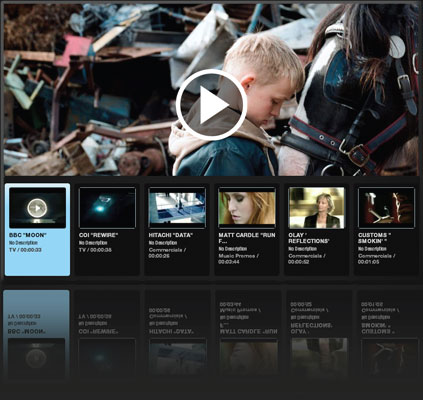
You can upgrade your membership to a Pro package at any time. This will allow you to access our media player, and add video, audio and stills to your profile page. Follow the link to UPGRADE via the main navigation bar. The initial price charged will be calculated according to which membership you are currently paying for and how many days/months you have been a member for. Once your first adjusted payment has been made regular payments will be made at the standard rate. For further details on the different packages and member benefits click here.
If your account is inactive you can reactivate it at any time. To do this simply log-in and select the REJOIN NOW button on your ProductionBase Dashboard page. All of your information will remain on your profile so you will just need to update it, choose your membership type and enter your payment details.
15. What is the 7 day free trial? Does it allow me to trial the site without having to commit to a paying membership?
Yes, if you have never been a member of ProductionBase before, you are eligible to receive a free 7 day trial. The 7 day free trial allows new members to trial our services before making a payment. If you have never previously had a paying membership, simply login or register and press the
START FREE 7 DAY TRIAL button. You can then select your chosen membership and enter your payment details.
Your first membership payment will not be deducted from your account until after midnight on the 7th day from when you start your free trial, so if you do not wish to continue and pay for your membership after your trial period ends, simply cancel online before the day your payment is due. If however, you are happy with the service and wish to continue, your membership will commence from the date of your first payment, so you receive 7 days free access!
Please note that access to the service will cease as soon as you cancel the free trial.
16. Why do I have to enter my payment details in order to take out the 7 day trial?
The 7 day trial allows you to trial any of our memberships before making payment. Your payment details are collected upon signing-up and stored securely by the payment provider you have selected (PayPal or Worldpay). Your first membership payment will not be processed until after your free trial has ended. You can cancel your trial membership at any time before the day your first payment is due and you will not be charged.
No, only new users who have never previously been ProductionBase members before are eligible to take out the free trial.
All ProductionBase memberships automatically renew unless you choose to cancel. To prevent your monthly or annual membership from renewing, please refer to How do I cancel my membership? above.
Back to Top